2026/08/04
S3 Browser (Now CS Browser) vs Inset — Which Should You Choose?
Compare S3 Browser, now called CS Browser, with Inset across platforms, bucket administration, asset organization, image processing, and everyday workflows.
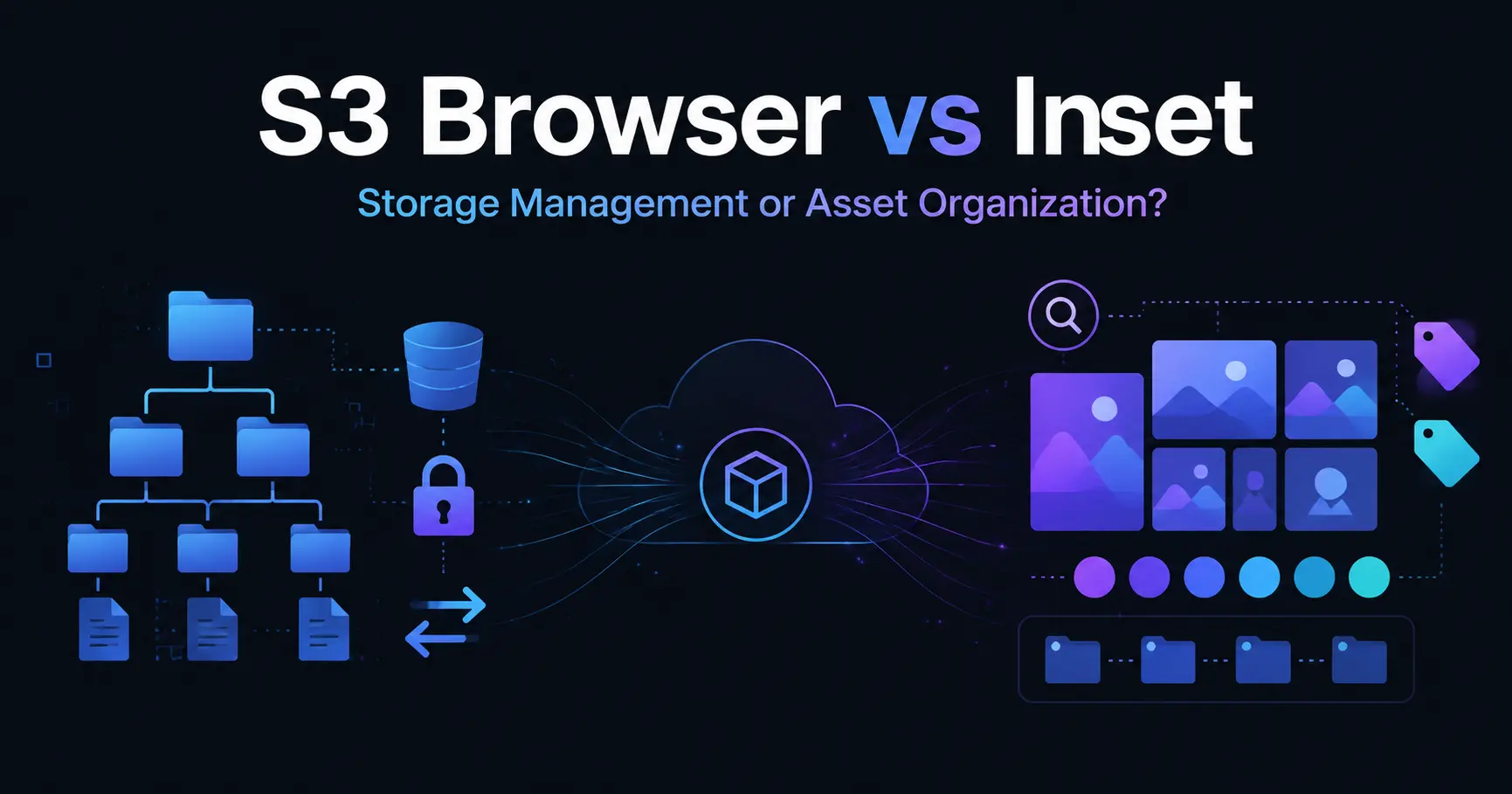
If you need a visual way to work with Amazon S3 or S3-compatible object storage, S3 Browser and Inset represent two different approaches.
S3 Browser is now called CS Browser. It is a Windows desktop client designed for file transfers, bucket administration, permissions, versions, storage classes, and synchronization. Inset runs in a web browser and focuses on previewing, organizing, finding, processing, and reusing visual assets.
The short answer: choose CS Browser when you need broad control over S3 buckets and storage settings. Choose Inset when you want a browser-based asset library with previews, folders, tags, notes, search, and batch image processing. Their features overlap, but their priorities are different.
S3 Browser Is Now CS Browser
According to the official rename announcement, S3 Browser has been renamed to CS Browser. It remains the same Windows desktop application, and its functionality, licensing, updates, support, and existing user settings remain unchanged.
This article uses “S3 Browser” in the title because many people still search for the former name. In the comparison itself, CS Browser refers to the current product.
Key Differences
| Comparison | CS Browser | Inset |
|---|---|---|
| Product type | Windows desktop application | Browser-based web application |
| Main focus | Managing object storage, buckets, and files | Browsing, organizing, and using images and assets |
| Current storage support | Amazon S3, Amazon S3 Glacier, and S3-compatible storage services | Publicly supports Cloudflare R2; also offers browser and local directory libraries |
| File workflow | Upload, download, copy, move, rename, and delete | Upload, save, preview, organize, share, and copy image links |
| Storage administration | Buckets, permissions, versions, storage classes, lifecycle rules, encryption, and CloudFront | Libraries, folders, tags, search, notes, and batch organization |
| Image processing | Primarily manages files already in storage | Format conversion, compression, resizing, and batch export |
| Setup | Install or run the Windows client | Open the website in a browser |
| Best suited for | Developers, system administrators, website operators, and users managing S3 settings | Creators, designers, marketers, and users organizing visual assets |
When CS Browser Is the Better Fit
CS Browser is a Windows file manager for object storage. Its official website documents tools for browsing buckets; uploading, downloading, copying, moving, renaming, and deleting files; and managing permissions, versions, storage classes, encryption, lifecycle rules, and CloudFront.
It also supports folder synchronization, multiple accounts, S3-compatible storage services, command-line tools, and large file transfers. These capabilities matter when your job is to administer storage rather than curate a visual collection.
CS Browser is a strong fit when you need to:
- manage one or more S3 accounts from Windows;
- create, delete, and inspect buckets;
- control file permissions, public access, and shareable URLs;
- view or restore object versions;
- configure storage classes, lifecycle rules, or encryption;
- synchronize local folders with object storage;
- manage CloudFront or automate repeated work from the command line.
Its advantage is the breadth of its object storage tools. That also means its interface exposes more settings related to permissions, transfers, and storage behavior, so it is best suited to users who already understand basic S3 concepts.
When Inset Is the Better Fit
Some object storage tools focus on buckets and permissions. Others focus on what happens after files have been stored: how people preview them, organize them, find them again, and prepare them for reuse.
Inset (Inset.im) is an S3 Web Browser for organizing assets that helps users browse, preview, categorize, search, and use images and files in their own object storage from the browser.
The current public version of Inset supports Cloudflare R2. You can also start with a browser library or grant access to a local directory without connecting object storage first.
Inset is a better fit for collections such as:
- images, screenshots, product photos, and article graphics;
- AI-generated images and visual references;
- design assets, brand materials, and project images;
- content that needs to be searched, filtered, and reused regularly;
- images that need format conversion, compression, resizing, or batch export.
It supports image uploads, storage, sharing, and link copying, then adds folders, tags, search, previews, and notes for ongoing organization. Its goal is not to expose every possible bucket setting. It is to make assets easier to find and use after they enter a library or storage bucket.
Object Storage Administration: CS Browser Goes Further
If your work involves permissions, object versions, lifecycle rules, storage classes, cross-account operations, or CloudFront, CS Browser is the more complete choice. These are core storage administration tasks and prominent parts of its official feature set.
Inset should not be treated as a full S3 administration console. Calling it an S3 Web Browser does not mean it replaces every bucket setting, permissions tool, or cloud provider console.
For infrastructure and bucket administration, CS Browser goes further. For working with visual content inside storage, Inset offers a more focused workflow.
Asset Organization and Image Processing: Inset Is More Focused
When a bucket contains mostly images and visual assets, uploading is often not the hardest problem. The harder problem is finding the right file again after the collection grows.
Inset combines folders, tags, search, previews, notes, and batch organization in one library. After finding an image, you can convert its format, compress it, resize it, or export multiple files together without moving through several separate image tools.
CS Browser can browse and preview files in storage, but its main strength remains object storage file operations. For product images, editorial graphics, AI images, and design references, Inset is more closely aligned with an asset workflow.
Platform and Setup
CS Browser is currently a Windows client. Its official download page lists Windows 7 SP1, 8.1, 10, and 11, along with several Windows Server releases. Users on macOS, Linux, or temporary devices need another way to access it.
Inset runs in a browser and does not require a desktop installation. A browser library is the quickest way to begin, while a local directory library is better for managing a long-term folder on your computer. Connecting Cloudflare R2 requires the corresponding storage details.
Browser-based does not mean configuration-free in every case. A browser library has a low setup barrier, but connecting your own object storage still requires an understanding of buckets, access credentials, and public access rules.
How to Choose
Choose CS Browser If You
- primarily work on Windows;
- manage Amazon S3 or several S3-compatible storage services;
- regularly work with buckets, permissions, versions, lifecycle rules, or storage classes;
- need folder synchronization, large file transfers, or command-line automation;
- prefer a desktop file manager for object storage.
Choose Inset If You
- want to work in a browser without installing desktop software;
- currently use Cloudflare R2, or want to begin with a browser or local directory library;
- primarily manage images, screenshots, product photos, AI images, or design assets;
- need folders, tags, search, previews, and notes;
- need image format conversion, compression, resizing, and batch export;
- need to upload, store, share, and copy links to images.
Use Both for Different Jobs
CS Browser and Inset can also play different roles in the same workflow. You can use CS Browser for buckets, permissions, versions, and synchronization, then use Inset for organizing and processing everyday visual assets.
This combination makes sense when you need both storage administration and an image library. Before connecting both tools, confirm the storage location, folder structure, and access rules to avoid duplicate uploads or accidental changes.
Frequently Asked Questions
Has S3 Browser Been Discontinued?
No. S3 Browser was renamed to CS Browser in 2026. The official announcement states that functionality, licensing, updates, support, and existing settings remain unchanged.
Does Inset Currently Support AWS S3?
The current public version of Inset supports Cloudflare R2. Other S3-compatible storage services should not be described as available until current public product information confirms them. If direct AWS S3 support is required today, CS Browser is the clearer choice.
Can Inset Completely Replace CS Browser?
It depends on the job. Inset can provide a more continuous workflow for browsing, organizing, processing, and sharing images. CS Browser remains the better fit for permissions, versions, lifecycle rules, storage classes, CloudFront, and command-line tools.
Which Tool Is Better for Large Image Collections?
Choose CS Browser when uploads, downloads, synchronization, and storage settings are the priority. Choose Inset when the images also need tags, search, notes, previews, format conversion, and batch export. Actual capacity and speed still depend on the device, browser, network, and storage configuration.
References
- CS Browser official website: current product positioning, storage support, and major features.
- Official S3 Browser to CS Browser rename announcement: details about the name change and its impact on existing users.
- CS Browser download page: supported Windows versions and current installation options.
- CS Browser folder synchronization guide: synchronization between local directories and object storage.
- Inset: current product entry, Cloudflare R2 support, and library experience.
All posts
2026/08/12
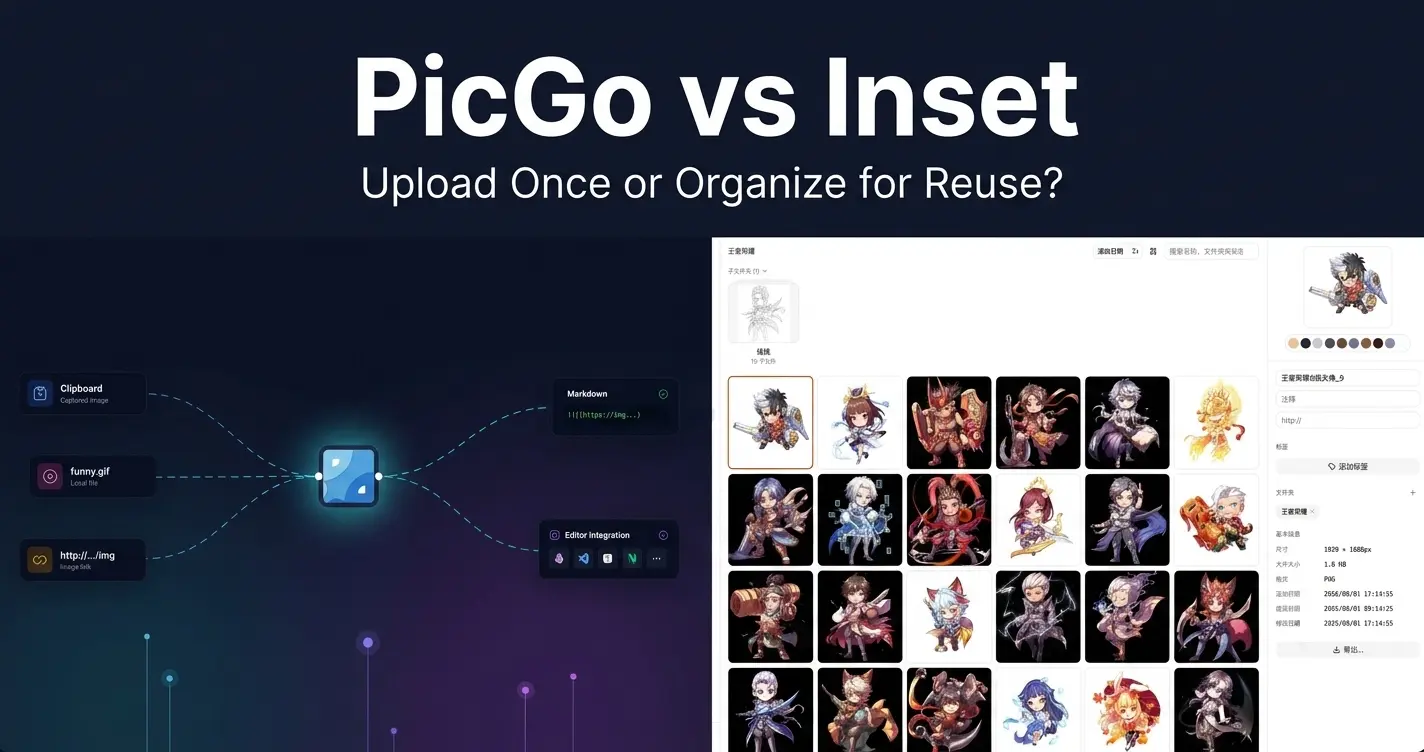
PicGo vs Inset
A practical comparison of PicGo and Inset across image uploading, link copying, asset organization, search, processing, and long-term reuse.
2026/08/11
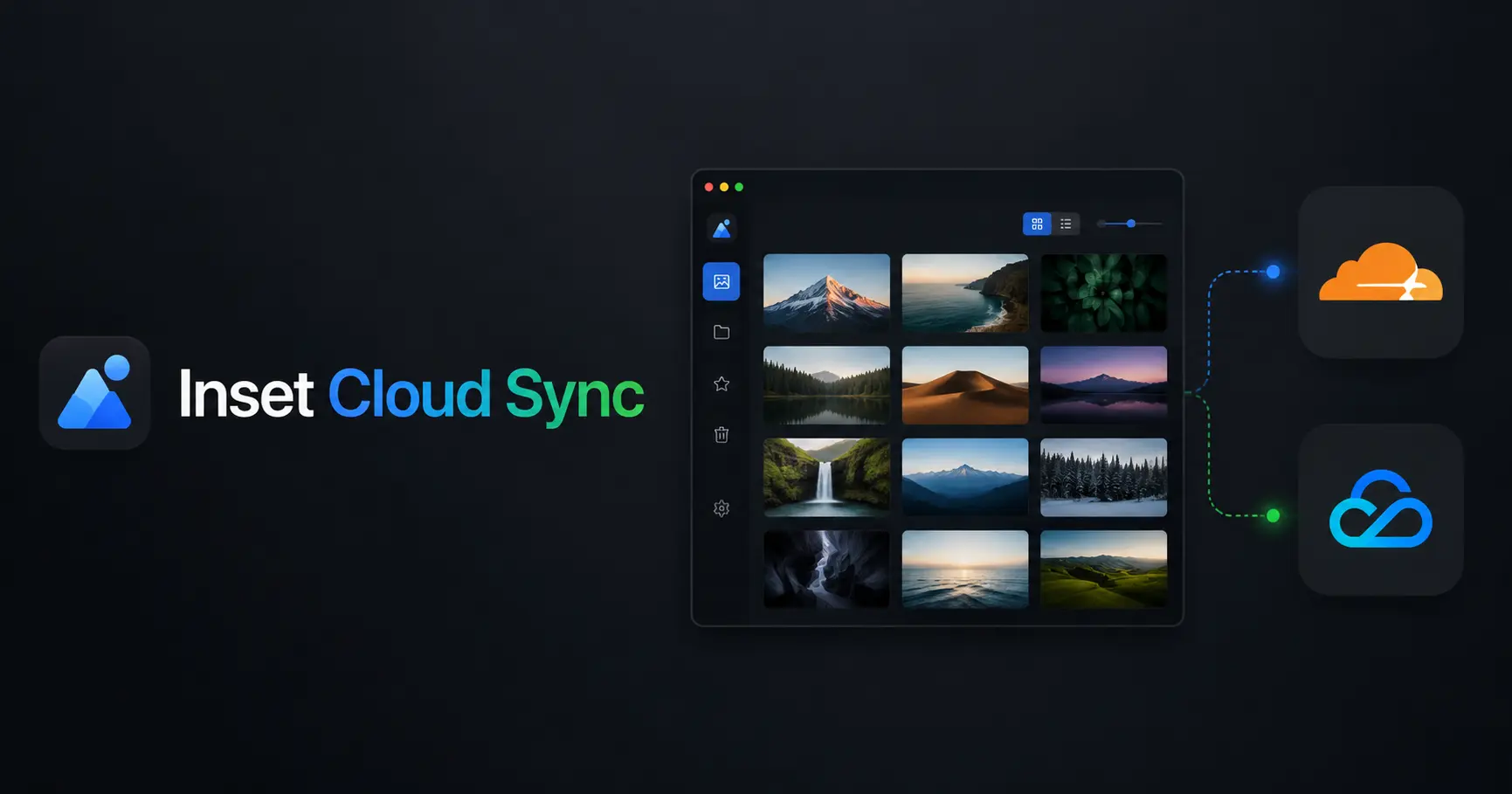
Inset Cloud Sync Is Now Available with Cloudflare R2 and Tencent Cloud COS
Inset now syncs local libraries with Cloudflare R2 and Tencent Cloud COS, with automatic sync, provider switching, and sync record recovery.
2026/08/05
What to Do When a Government Website Requires an Image Under 300KB
Use a browser-based tool to compress a JPG or PNG to under 100KB, then upload it to a government or public-service website with a 300KB file limit.
2026/08/05
Pixcall vs Inset — Which Asset Manager Fits Your Workflow?
Compare Pixcall and Inset across local file ownership, desktop and browser workflows, cloud sync, image organization, processing, and sharing.
2026/08/04
S3 Browser (Now CS Browser) vs Inset — Which Should You Choose?
Compare S3 Browser, now called CS Browser, with Inset across platforms, bucket administration, asset organization, image processing, and everyday workflows.
2026/08/03
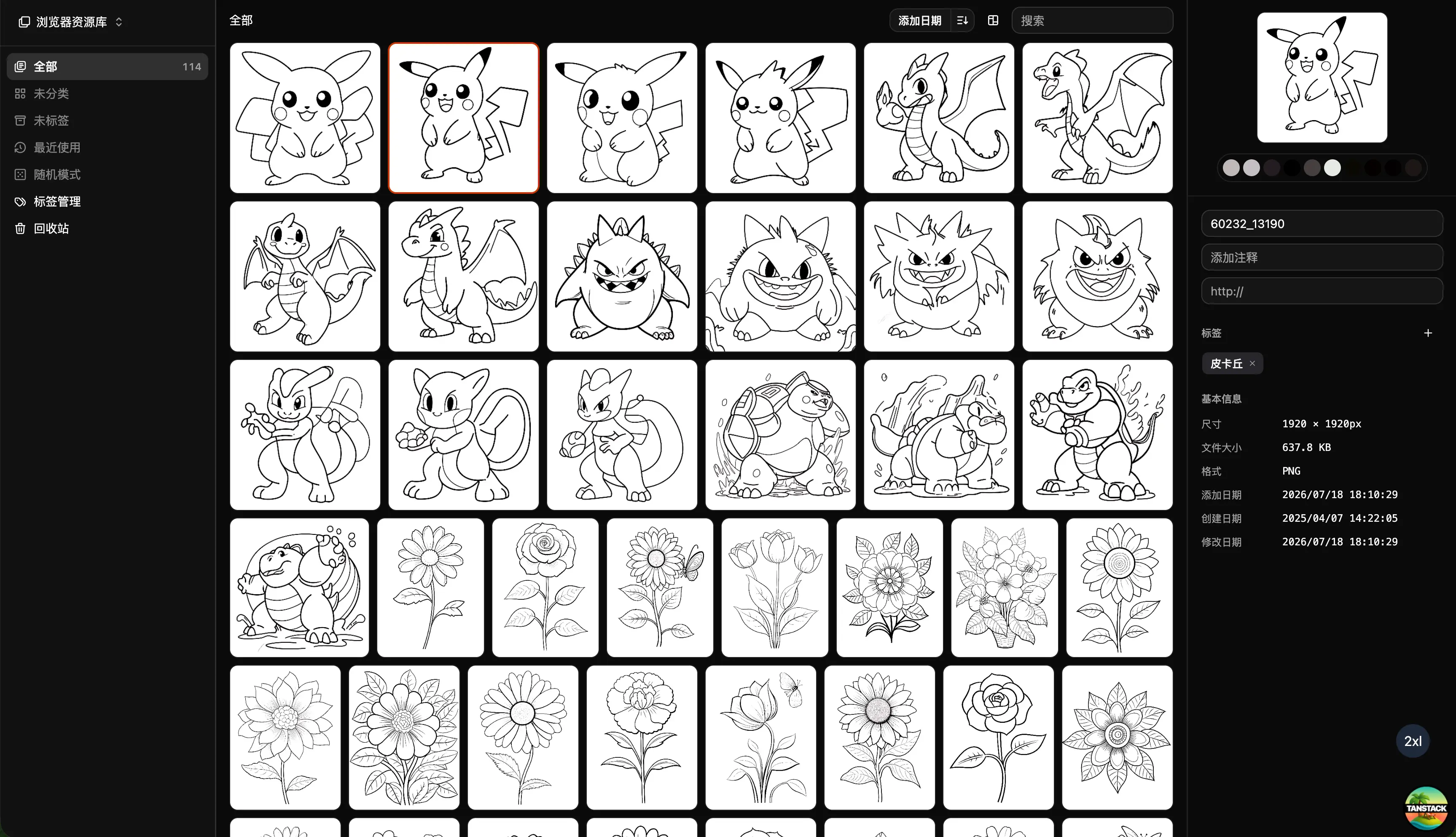
Can Inset Replace Eagle + Nutstore?
A practical comparison of Inset, Eagle, and Nutstore for image organization, file syncing, storage, browser access, image links, and object storage workflows.
2026/08/03
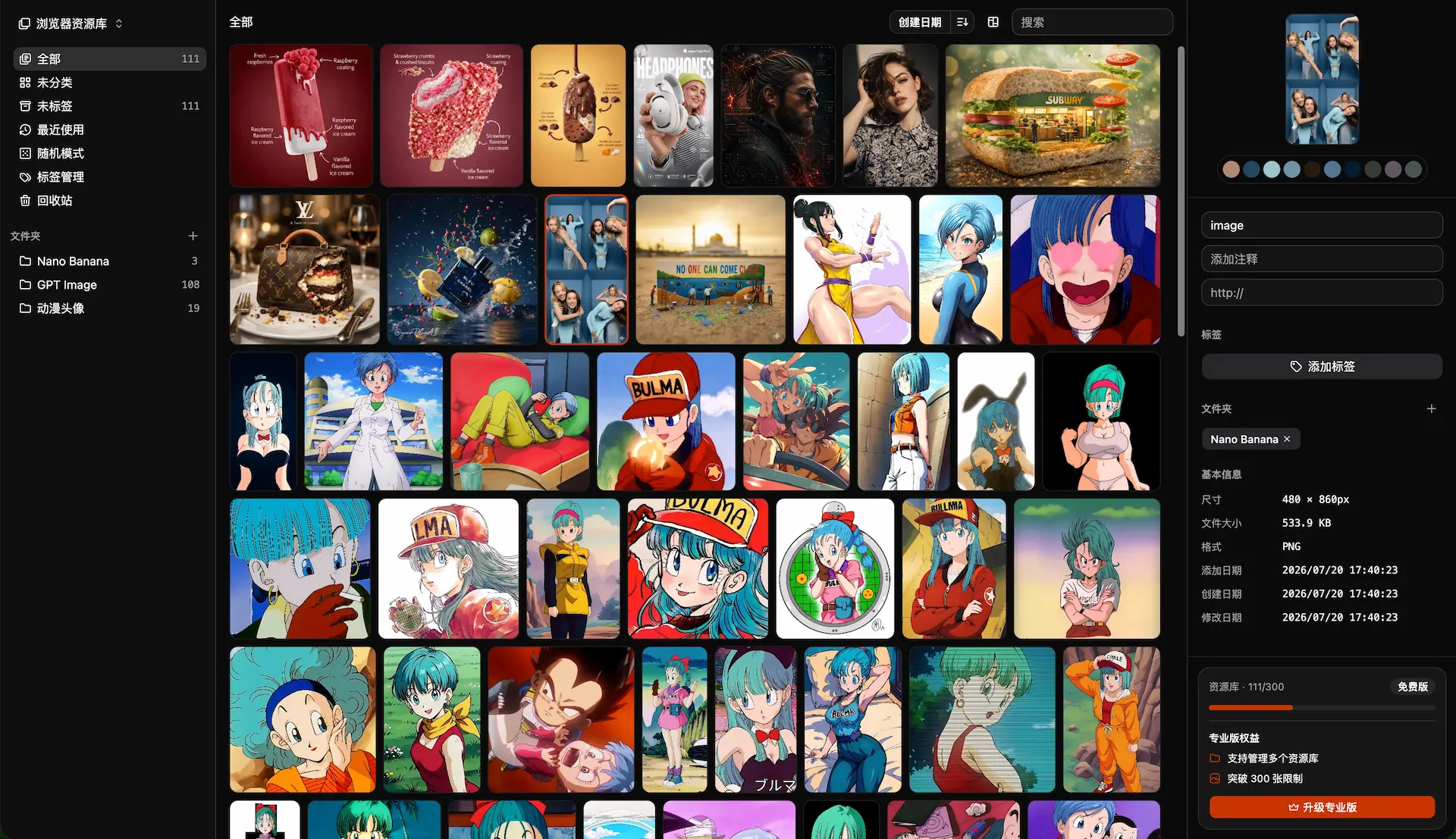
Lsky Pro vs Inset.im: Which Image Tool Should You Choose?
A practical comparison of Lsky Pro and Inset.im, covering image uploads, storage, sharing, link copying, self-hosting, asset organization, and everyday workflows.
2026/07/31
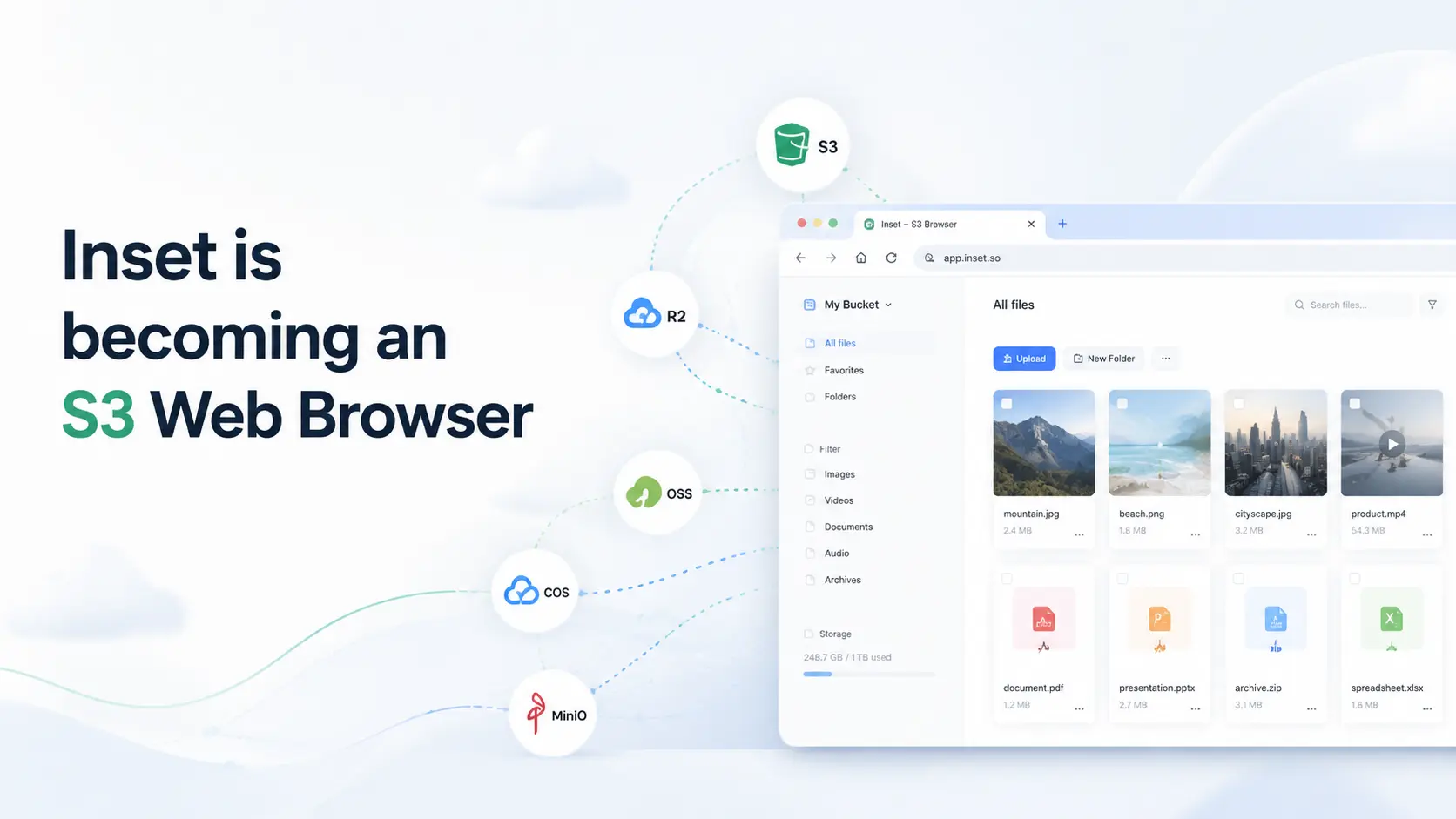
Inset is becoming an S3 Web Browser
Inset is moving from a browser-based image library toward a modern S3 Web Browser for managing cloud bucket files and visual assets online.
2026/07/26
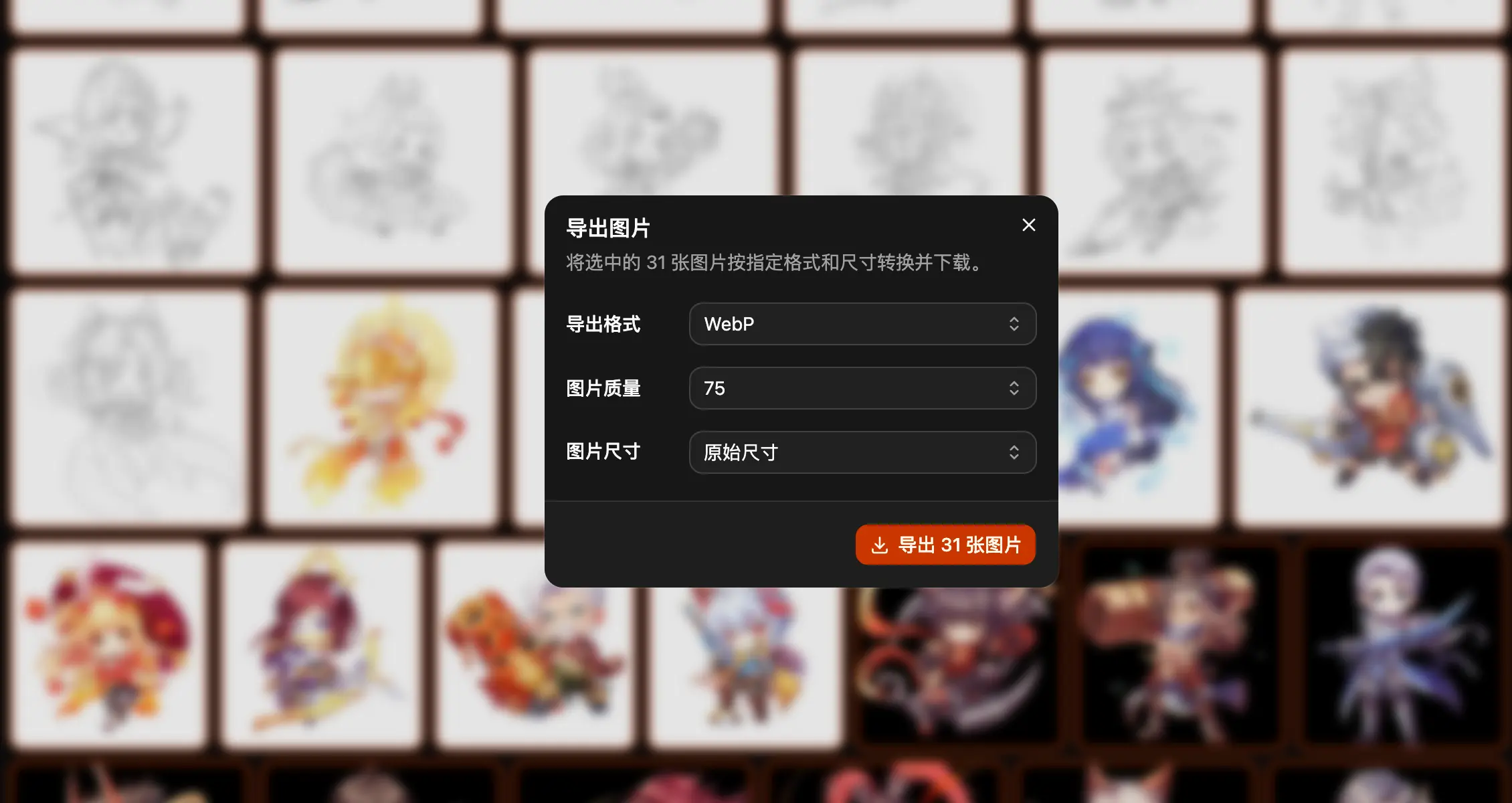
Inset.im Batch Export Is Now Available
Export one or more images with Inset.im, convert formats, adjust quality, and resize by width, height, long edge, or short edge.
2026/07/22
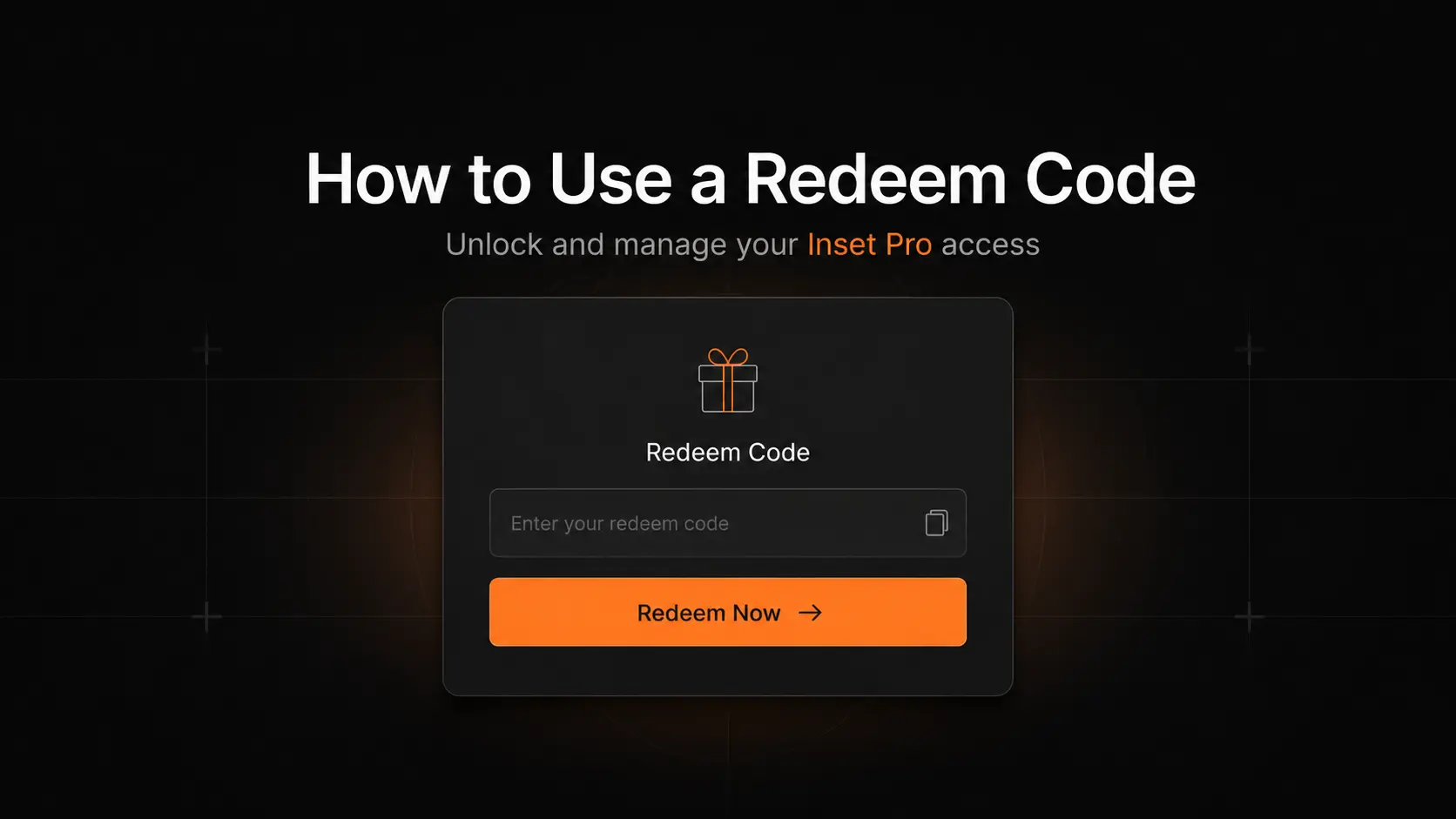
How to Use a Redeem Code on Inset.im
Learn how to redeem Pro access on Inset.im, check when it becomes active, review your entitlement status, and resolve common redeem code errors.
2026/07/20
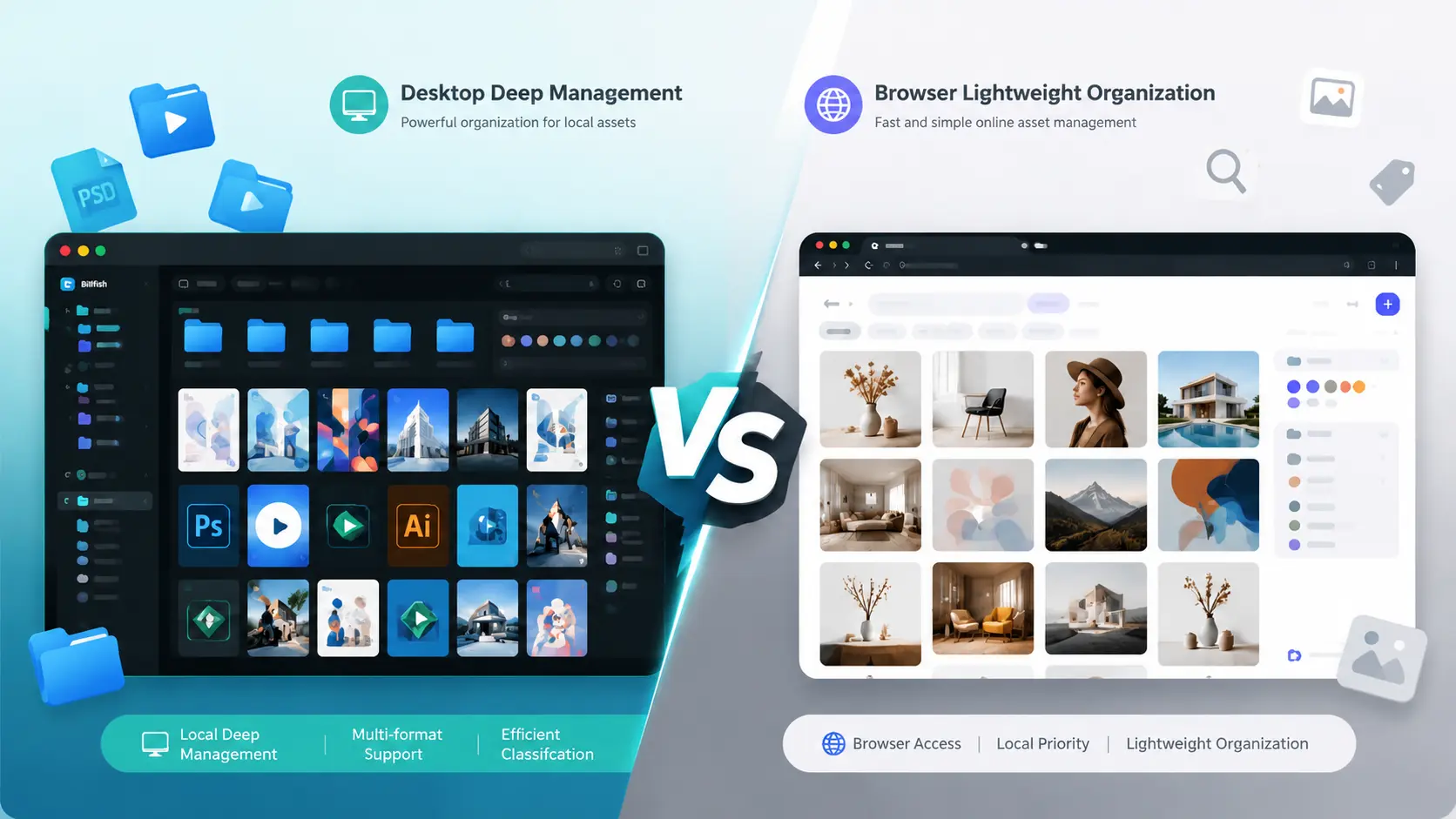
What Is the Difference Between Billfish and Inset.im
A practical comparison between Billfish and Inset.im, covering desktop asset management, browser-based image libraries, local-first storage, supported formats, organization workflows, and ideal users.
2026/07/18
Image Asset Management Tool Selection Guide
A practical guide to choosing between Eagle, Billfish, Pixcall, Adobe Bridge, and Inset.im based on library structure, local-first storage, Eagle compatibility, image processing, prompt management, and image organization scenarios.