2026/08/12
PicGo vs Inset
A practical comparison of PicGo and Inset across image uploading, link copying, asset organization, search, processing, and long-term reuse.
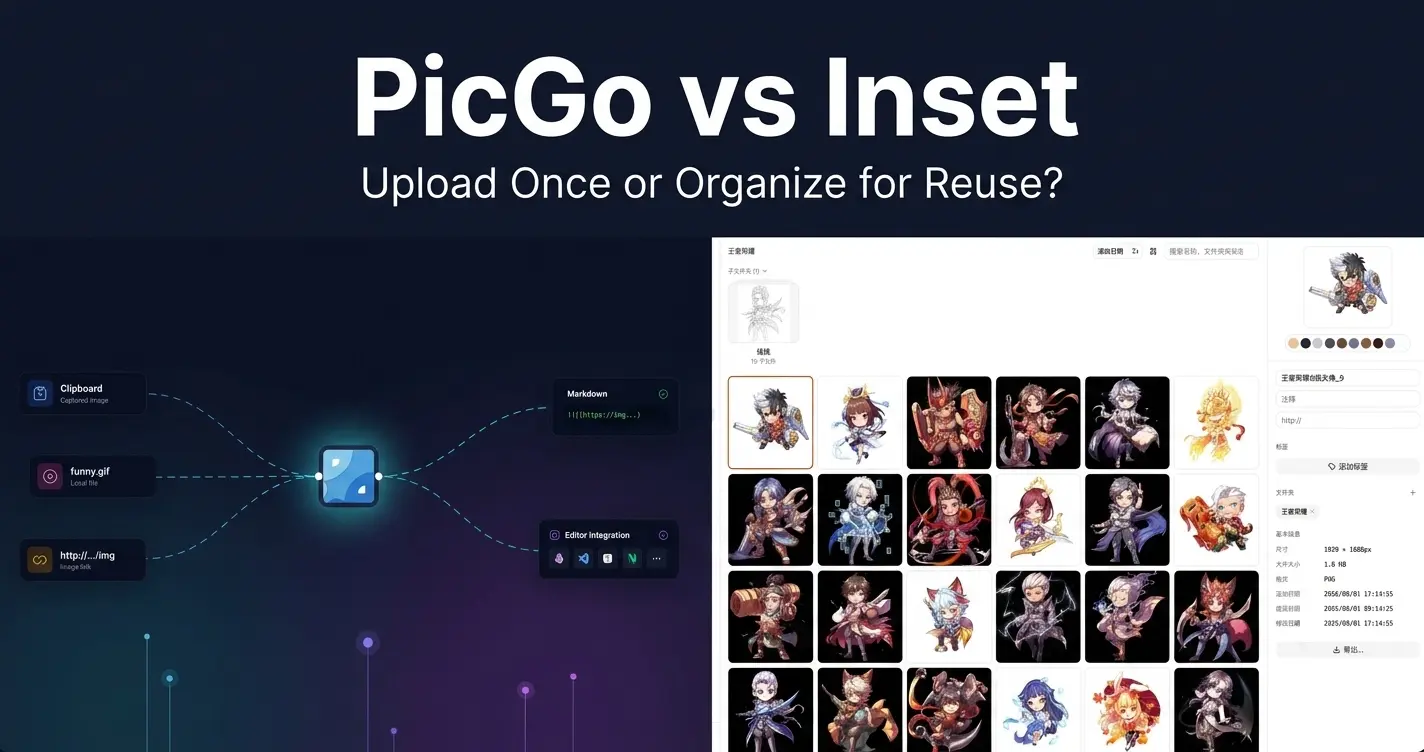
PicGo is excellent at one narrow task: upload a new image quickly and copy the resulting link. It is especially convenient for screenshots and Markdown writing.
The limitation appears later. When you need an image uploaded weeks or months ago, PicGo gives you little help beyond upload history, filenames, or the original local file. It does not turn those uploads into a searchable, reusable asset library. When the original is hard to find, re-uploading is often the only practical option.
Inset is built around the workflow after upload: organize, search, preview, process, share, and reuse images and files over time. The two tools overlap on uploading, storing, and copying links, but they solve different problems.
Core Differences
| Category | PicGo | Inset |
|---|---|---|
| Primary job | Fast image upload and automatic link copying | Browse, organize, process, and reuse long-term assets |
| Product form | Desktop app for Windows, macOS, and Linux | Browser application |
| Upload entry points | Drag and drop, clipboard, hotkeys, and context menus | Upload and manage files inside a library |
| Link output | Markdown, HTML, URL, and custom formats | Copy image links and share images |
| Storage connections | Built-in image hosts and third-party plugins | Browser, local-directory, and object-storage libraries |
| Organization | Mainly upload records and lightweight album/history views | Folders, tags, search, previews, notes, and bulk organization |
| Image processing | Mainly extended through plugins | Built-in conversion, compression, resizing, and bulk export |
| Integrations | Plugin ecosystem, HTTP API, and editor integrations | Browser-first asset library workflow |
| Best fit | Developers and Markdown-heavy writers | Creators and teams with growing, reusable image collections |
PicGo Is Strong at Instant Uploads
PicGo is designed to make uploading part of the writing flow. Its official documentation describes automatic clipboard copying after upload, with Markdown, HTML, URL, and custom output formats.
That makes it useful for blogs, notes, and developer documentation. Capture a screenshot, invoke the global hotkey, and paste the generated link into your editor. PicGo can also work with Typora, Obsidian, VS Code, SiYuan, and other editors through native support or community plugins.
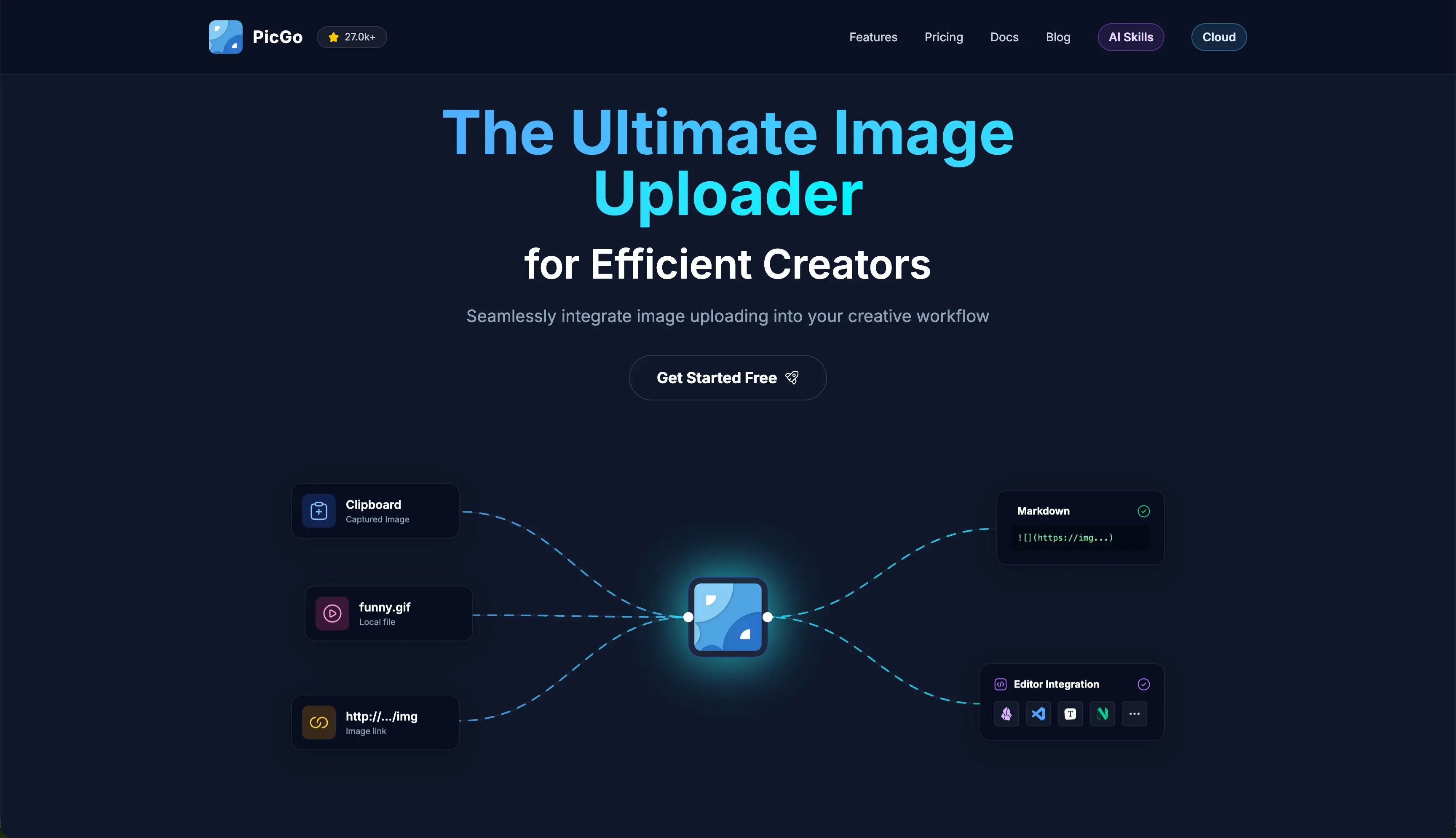
PicGo supports services such as Qiniu, Tencent COS, UPYUN, Alibaba OSS, GitHub, SM.MS (S.EE), and Imgur out of the box. AWS S3, Cloudflare R2, MinIO, and other targets can be added through plugins. It also exposes an HTTP API for editor, script, and automation integrations.
PicGo is a good fit when you:
- insert fresh screenshots into Markdown frequently;
- want a new image uploaded immediately after copying or capturing it;
- need automatic Markdown, HTML, or custom link output;
- already have a configured image host or object storage target;
- rely on plugins for compression, watermarking, or renaming;
- need to trigger uploads from an editor, script, or local tool.
PicGo's Boundary Is Asset Reuse
PicGo can show upload results and may provide albums or history lists, but an upload history is not the same as an asset library. History is usually organized around an upload event and a generated URL. It does not replace project folders, tags, notes, combined search, or content-based retrieval.
This matters when the same image should be reused. If you uploaded a cover image today and need it again next month, finding it through PicGo alone may be difficult unless you still know the filename or have the original file. For a growing collection, PicGo behaves more like a transfer utility than a durable, searchable image library.
Its plugin ecosystem is a real advantage, but it also means the experience depends on plugin maintenance and storage configuration. Before making PicGo part of a long-term workflow, test the plugin operations you depend on, including URL generation, renaming, deletion, and remote file management.
Inset Is Built for Long-Term Organization
An image host answers “how do I upload this and get a link?” An asset library answers “how do I find and use this again later?” That is the central difference between PicGo and Inset.
Inset (Inset.im) is an S3 Web Browser for organizing assets that helps users browse, preview, categorize, search, and use images and files in their own object storage from the browser.
In the Inset library, you can organize images with folders, tags, search, previews, and notes, then select multiple files for bulk operations. After finding an asset, you can convert its format, compress it, resize it, export it in bulk, share it, or copy its link.
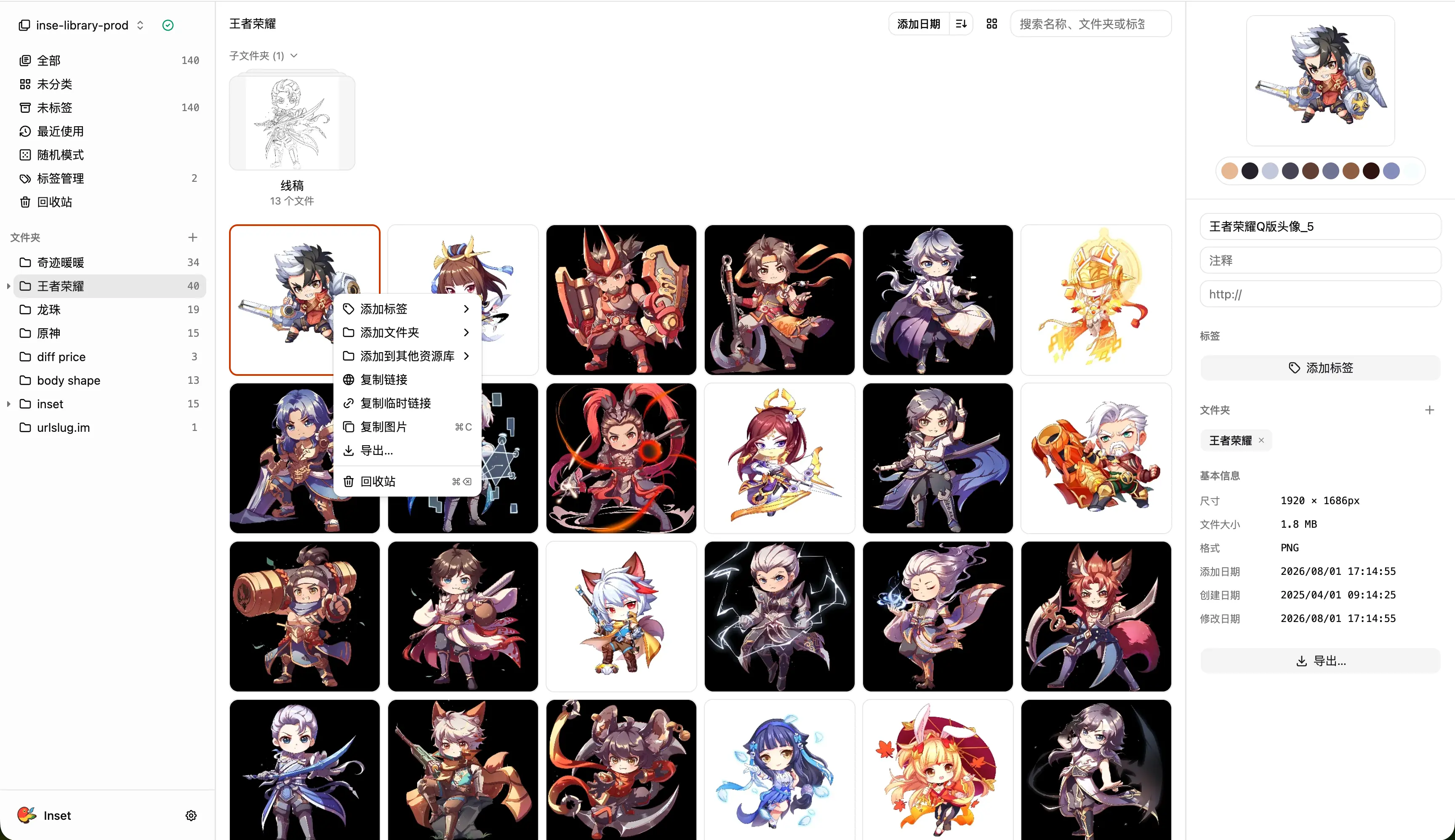
Inset supports browser libraries, local-directory libraries, and object-storage libraries. The right choice depends on where your originals live and how you want to access them. Availability and access behavior for a specific object-storage provider should be confirmed against the current product configuration.
Inset is a better fit when you:
- expect images to accumulate over time;
- need folders, tags, search, and notes to retrieve older assets;
- manage AI images, product images, article graphics, screenshots, or references;
- want to compress, resize, convert, or bulk-export after finding an asset;
- prefer a browser workflow over installing a desktop uploader;
- already keep assets in a local directory or object storage.
Inset's Boundary Is Desktop Upload Automation
Inset supports image upload, storage, sharing, and link copying, but it is not centered on global hotkeys, system context menus, or background editor uploads.
If your priority is uploading a new screenshot and immediately pasting a specific link format into Markdown, PicGo is faster. Its API, plugins, and desktop integrations are better suited to an established automated upload pipeline.
Inset's advantage starts after the upload: organizing the image, finding it later, processing it for a new destination, and reusing it across projects. It should not be presented as a one-to-one replacement for every PicGo desktop or plugin capability.
Choosing by Workflow
You only need instant link output
Use PicGo. Once the image host and link format are configured, the capture-upload-paste loop is extremely short.
You need to find and reuse older images
Use Inset. Folders, tags, search, notes, previews, and bulk organization are designed for a collection that keeps growing.
You need both workflows
You can combine them, but define the source of truth first. For example, keep originals, tags, and delivery versions in Inset, then use PicGo to send a final image to an existing image host and generate a Markdown link.
You can also keep an existing PicGo pipeline and move only reusable assets into Inset. Test filenames, duplicate handling, public access, and deletion rules before maintaining the same image in multiple places.
Can Inset Replace PicGo
Partially, but not completely.
If you use PicGo mainly for uploading images, storing them, and copying ordinary links, Inset can cover that workflow while adding durable search, organization, processing, and reuse. The key change is that an upload remains useful after the initial link has been pasted.
If you depend on global hotkeys, automatic Markdown output, editor integrations, the HTTP API, custom templates, or a specific image-host plugin, PicGo remains the better tool for that part of the workflow.
FAQ
Are PicGo and Inset both image hosts?
Not exactly. PicGo is primarily an uploader that connects to image hosts; the files live in the configured host, cloud service, or PicGo Cloud. PicGo is good at sending new images and copying links, but it does not provide the same searchable, reusable asset-library model as Inset. Inset can upload, store, share, and copy links, while its overall position is an asset-focused object-storage browser rather than a traditional public image host.
Which is better for Markdown writing?
For uploading a new image and pasting its link, PicGo is more direct. For finding an older image, checking a previous version, processing it, and publishing it again, Inset is more useful.
Which is better for Cloudflare R2?
Both can participate in a Cloudflare R2 workflow, but in different ways. PicGo generally uses a third-party plugin to upload to R2, while Inset treats object storage as a browsable and organizable asset library.
Which is easier if I do not already have an image-host setup?
Inset's browser library is the simpler starting point if you do not want to configure an image host, domain, access rules, and plugins first. PicGo is most useful once the upload destination and link rules are already known.
References
All posts
2026/08/12
PicGo vs Inset
A practical comparison of PicGo and Inset across image uploading, link copying, asset organization, search, processing, and long-term reuse.
2026/08/11
Inset Cloud Sync Is Now Available with Cloudflare R2 and Tencent Cloud COS
Inset now syncs local libraries with Cloudflare R2 and Tencent Cloud COS, with automatic sync, provider switching, and sync record recovery.

2026/08/05
What to Do When a Government Website Requires an Image Under 300KB
Use a browser-based tool to compress a JPG or PNG to under 100KB, then upload it to a government or public-service website with a 300KB file limit.
2026/08/05
Pixcall vs Inset — Which Asset Manager Fits Your Workflow?
Compare Pixcall and Inset across local file ownership, desktop and browser workflows, cloud sync, image organization, processing, and sharing.
2026/08/04
S3 Browser (Now CS Browser) vs Inset — Which Should You Choose?
Compare S3 Browser, now called CS Browser, with Inset across platforms, bucket administration, asset organization, image processing, and everyday workflows.
2026/08/03
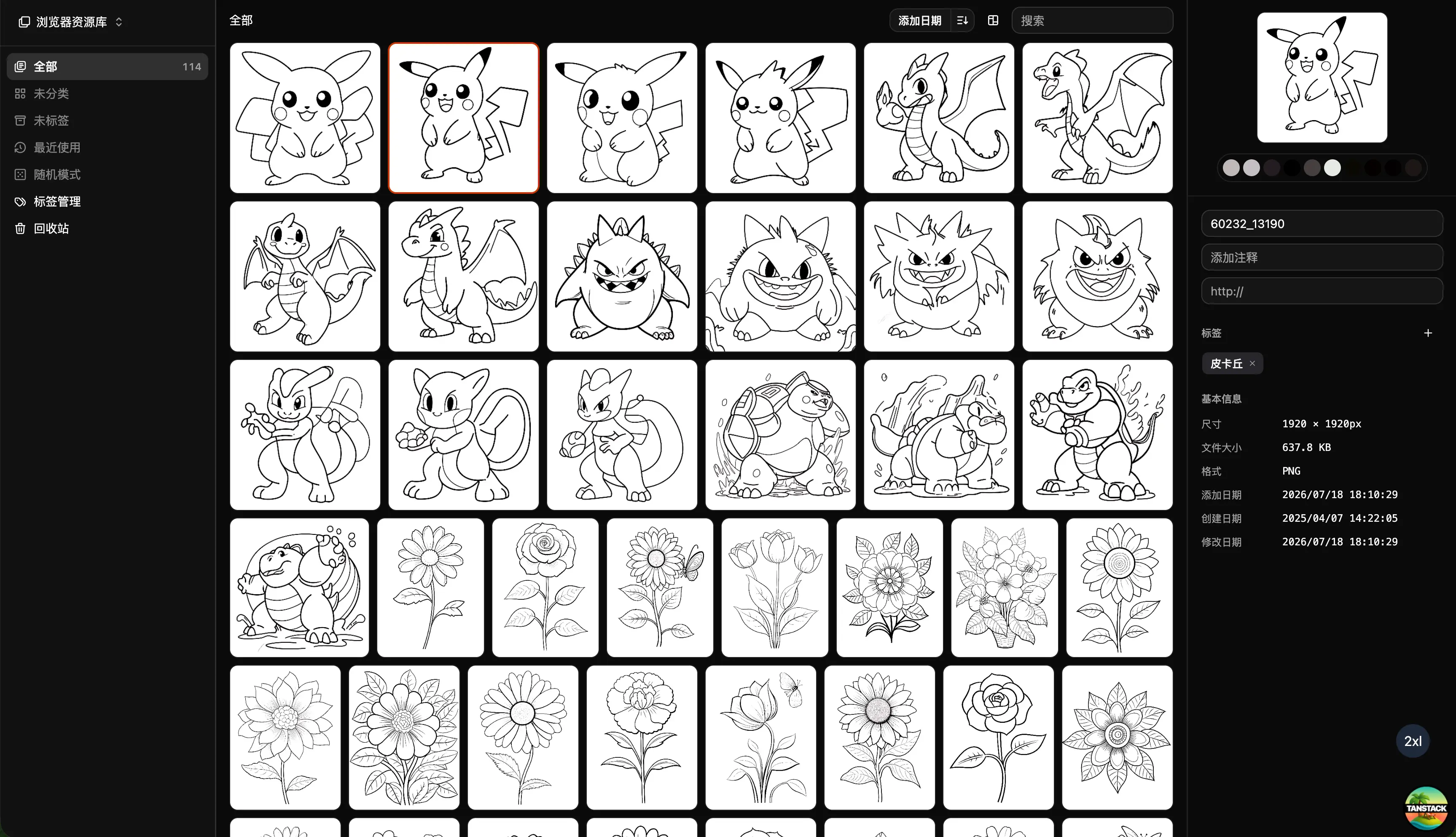
Can Inset Replace Eagle + Nutstore?
A practical comparison of Inset, Eagle, and Nutstore for image organization, file syncing, storage, browser access, image links, and object storage workflows.
2026/08/03
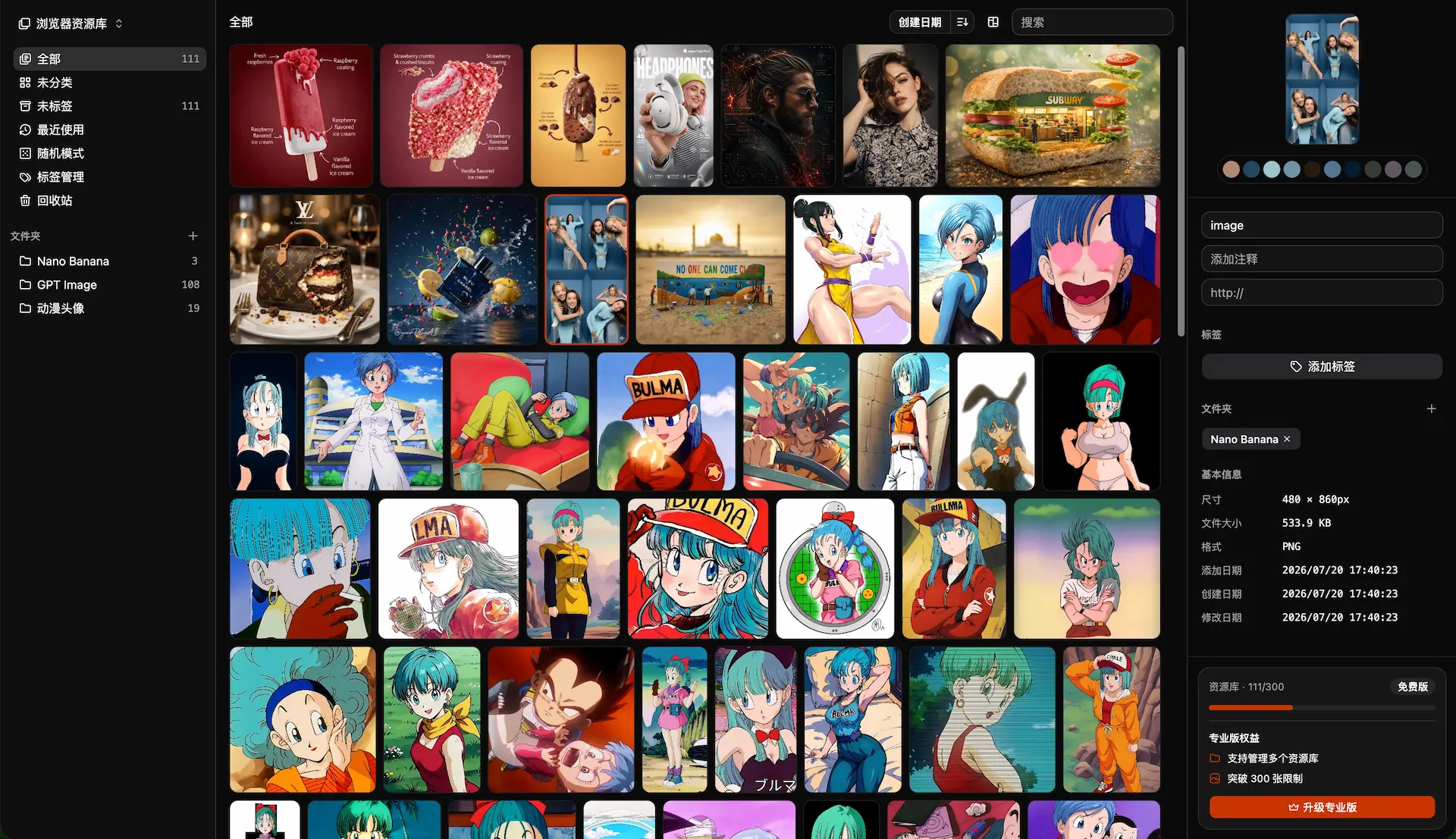
Lsky Pro vs Inset.im: Which Image Tool Should You Choose?
A practical comparison of Lsky Pro and Inset.im, covering image uploads, storage, sharing, link copying, self-hosting, asset organization, and everyday workflows.
2026/07/31
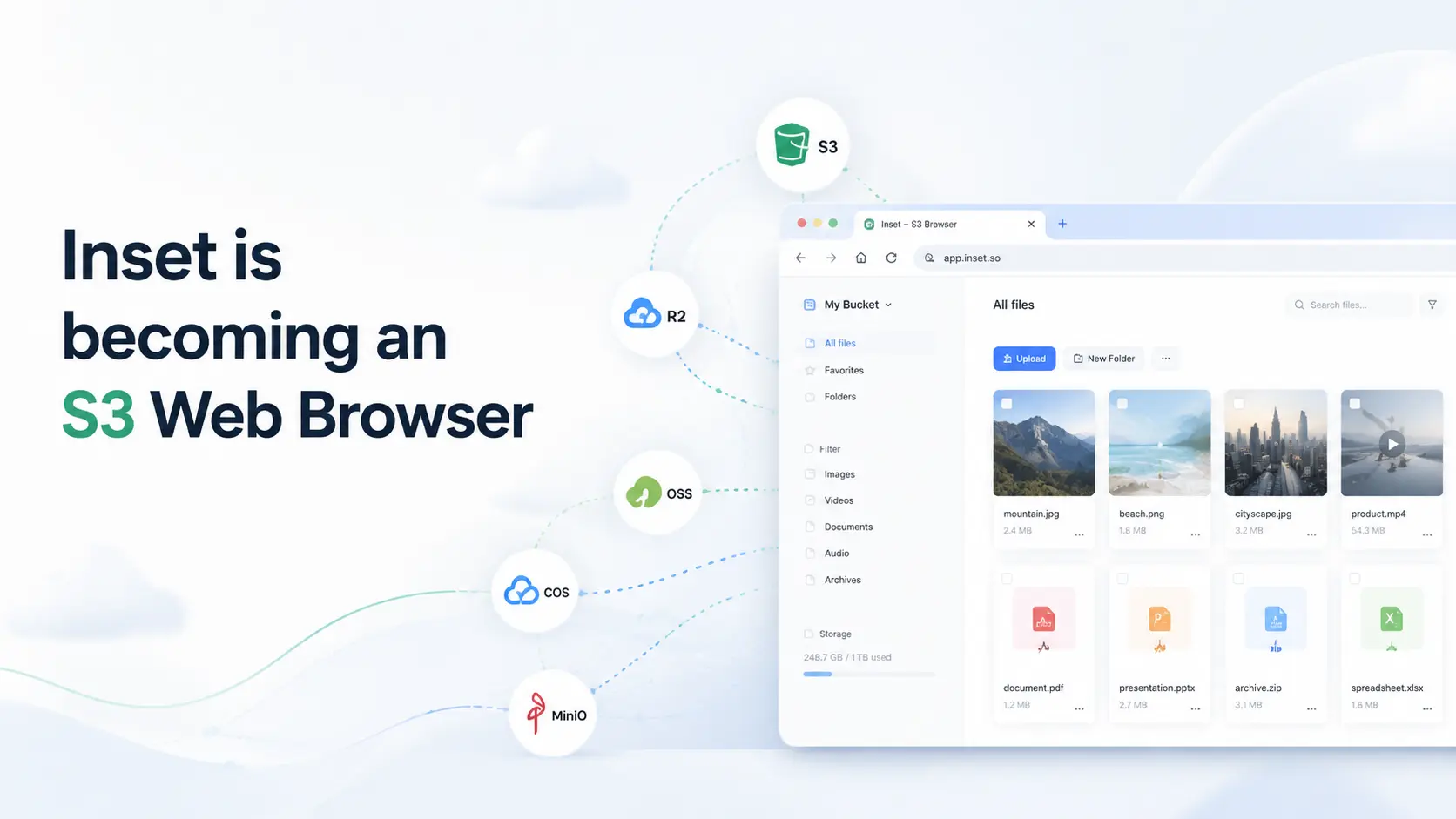
Inset is becoming an S3 Web Browser
Inset is moving from a browser-based image library toward a modern S3 Web Browser for managing cloud bucket files and visual assets online.
2026/07/26
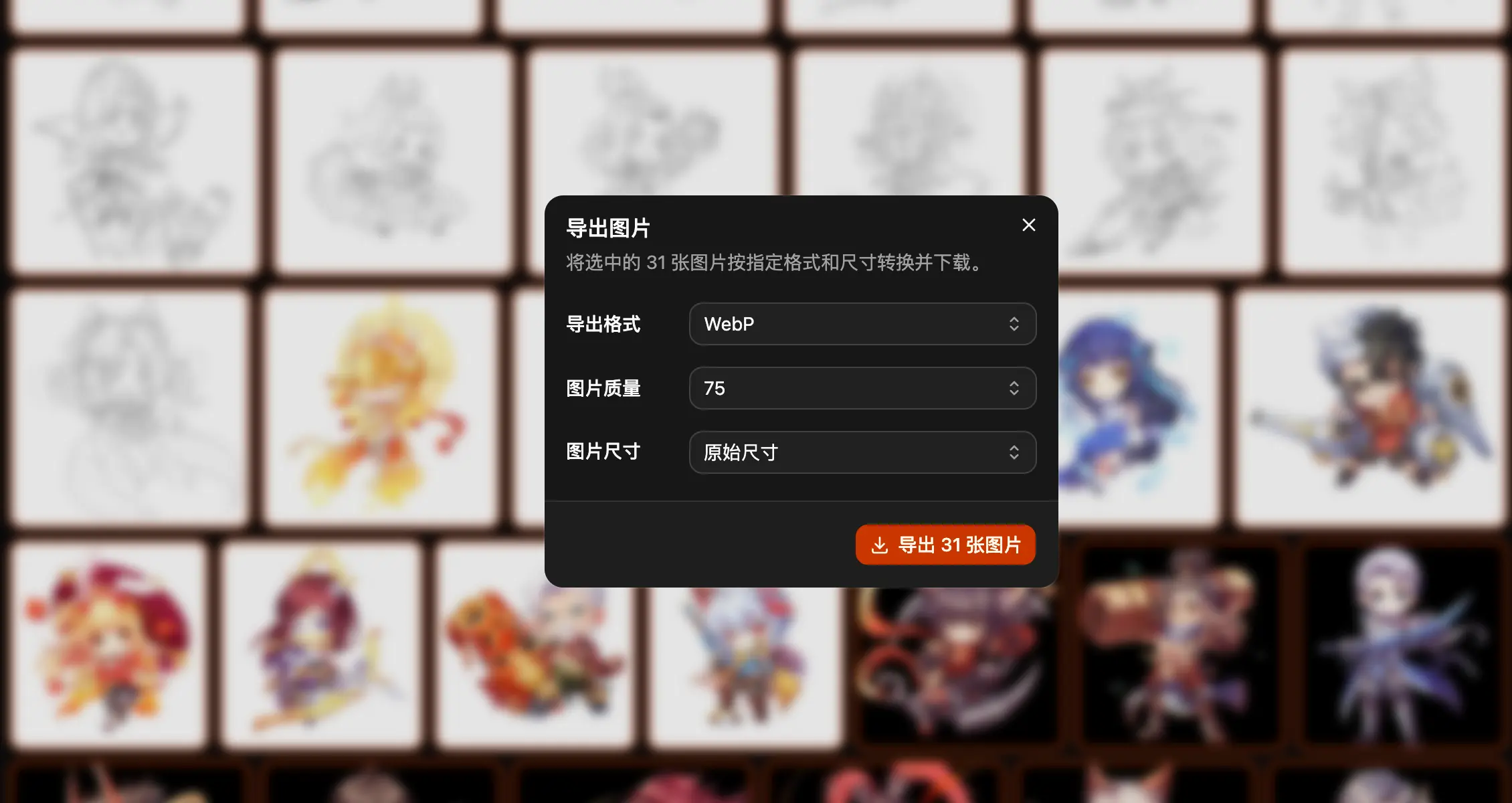
Inset.im Batch Export Is Now Available
Export one or more images with Inset.im, convert formats, adjust quality, and resize by width, height, long edge, or short edge.
2026/07/22
How to Use a Redeem Code on Inset.im
Learn how to redeem Pro access on Inset.im, check when it becomes active, review your entitlement status, and resolve common redeem code errors.
2026/07/20
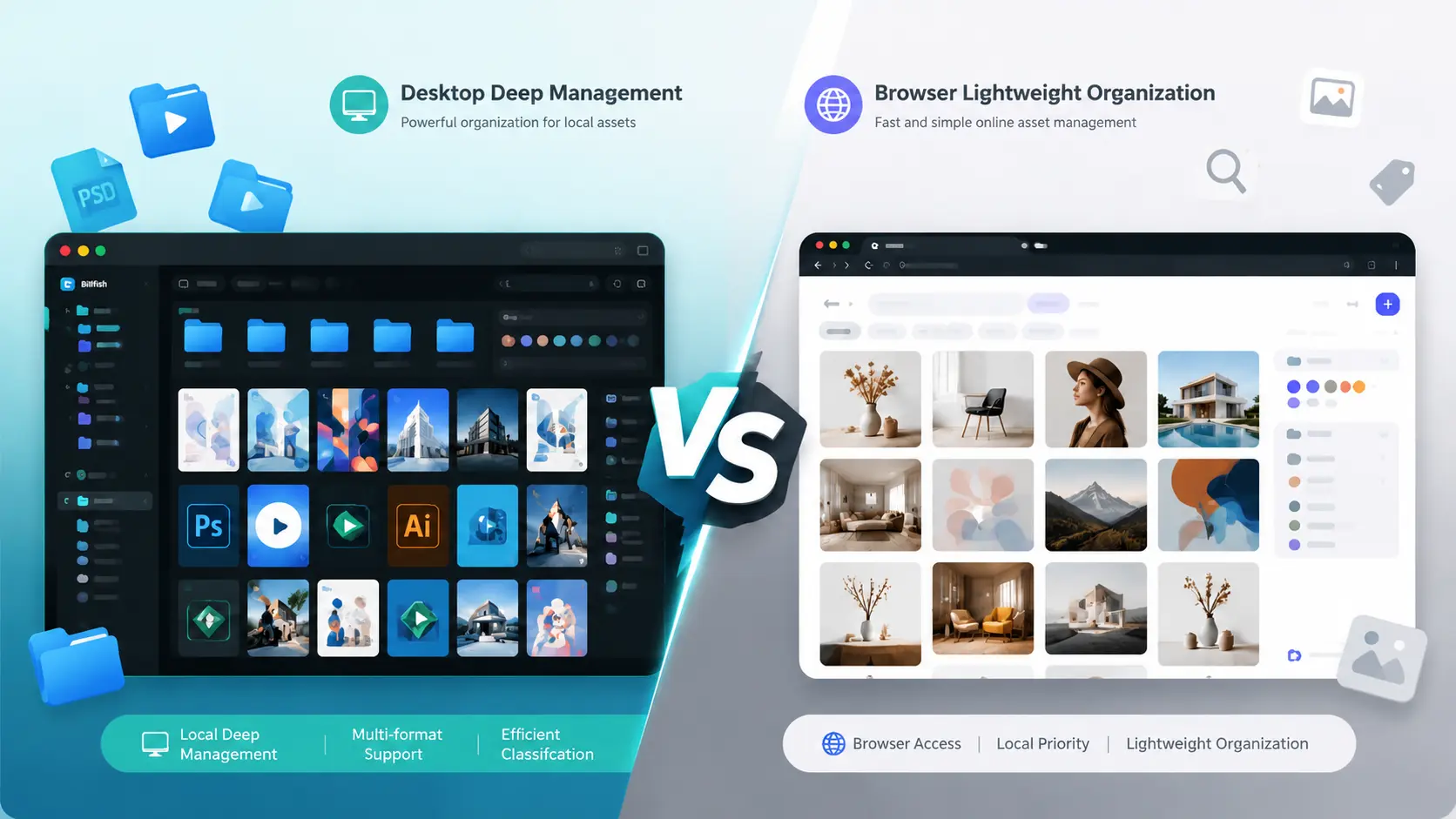
What Is the Difference Between Billfish and Inset.im
A practical comparison between Billfish and Inset.im, covering desktop asset management, browser-based image libraries, local-first storage, supported formats, organization workflows, and ideal users.
2026/07/18
Image Asset Management Tool Selection Guide
A practical guide to choosing between Eagle, Billfish, Pixcall, Adobe Bridge, and Inset.im based on library structure, local-first storage, Eagle compatibility, image processing, prompt management, and image organization scenarios.